Understanding the Interface
Virtual Cofounder uses a terminal-style chat interface. Here's what each part does.
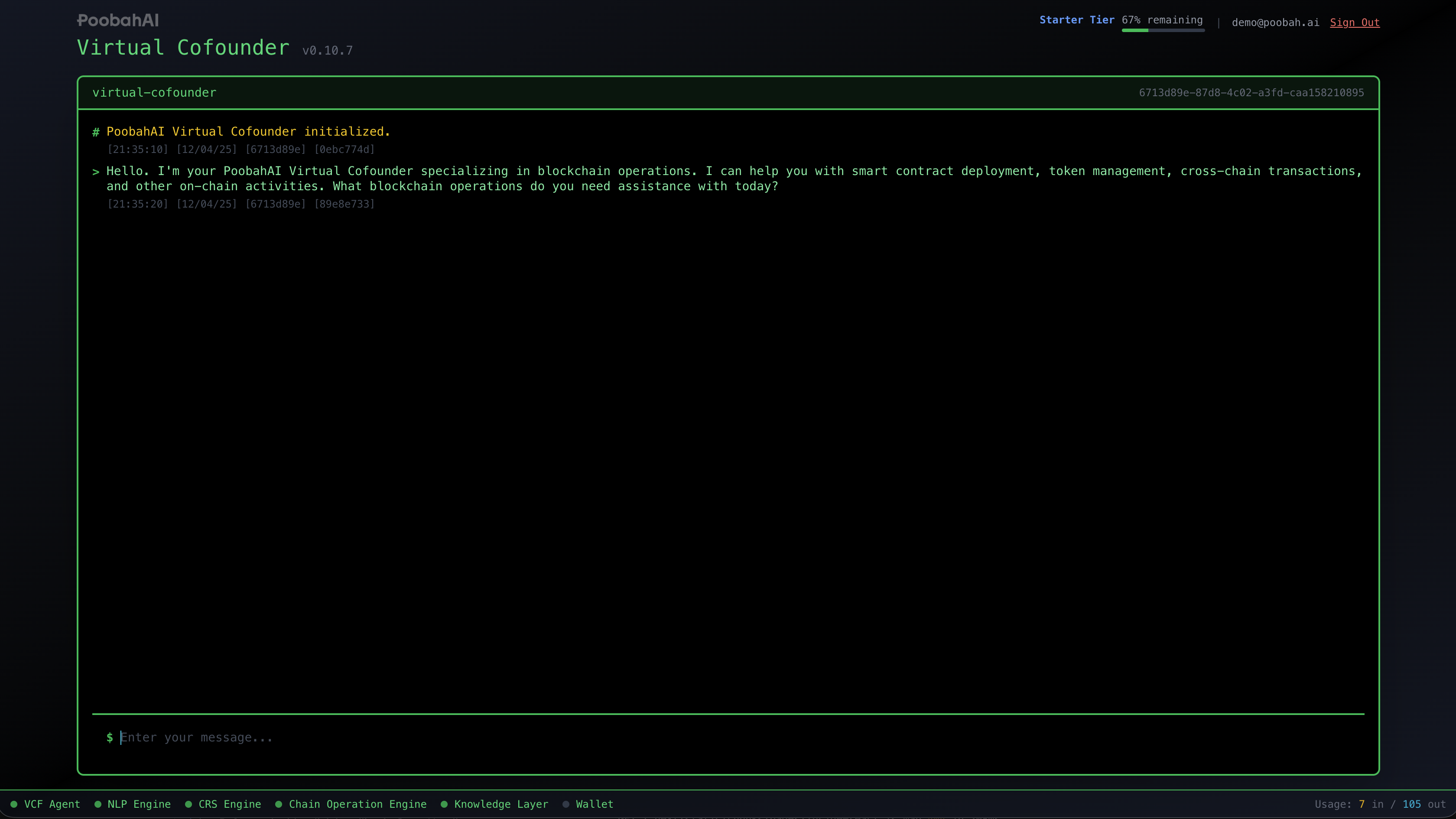
Header

The header at the top of the screen contains:
- Usage indicator (top-left) — Shows your remaining monthly allowance as a percentage
- Account menu (top-right) — Your email and sign out option
- Wallet status — Shows your connected wallet address and chain (when connected)
Chat Area
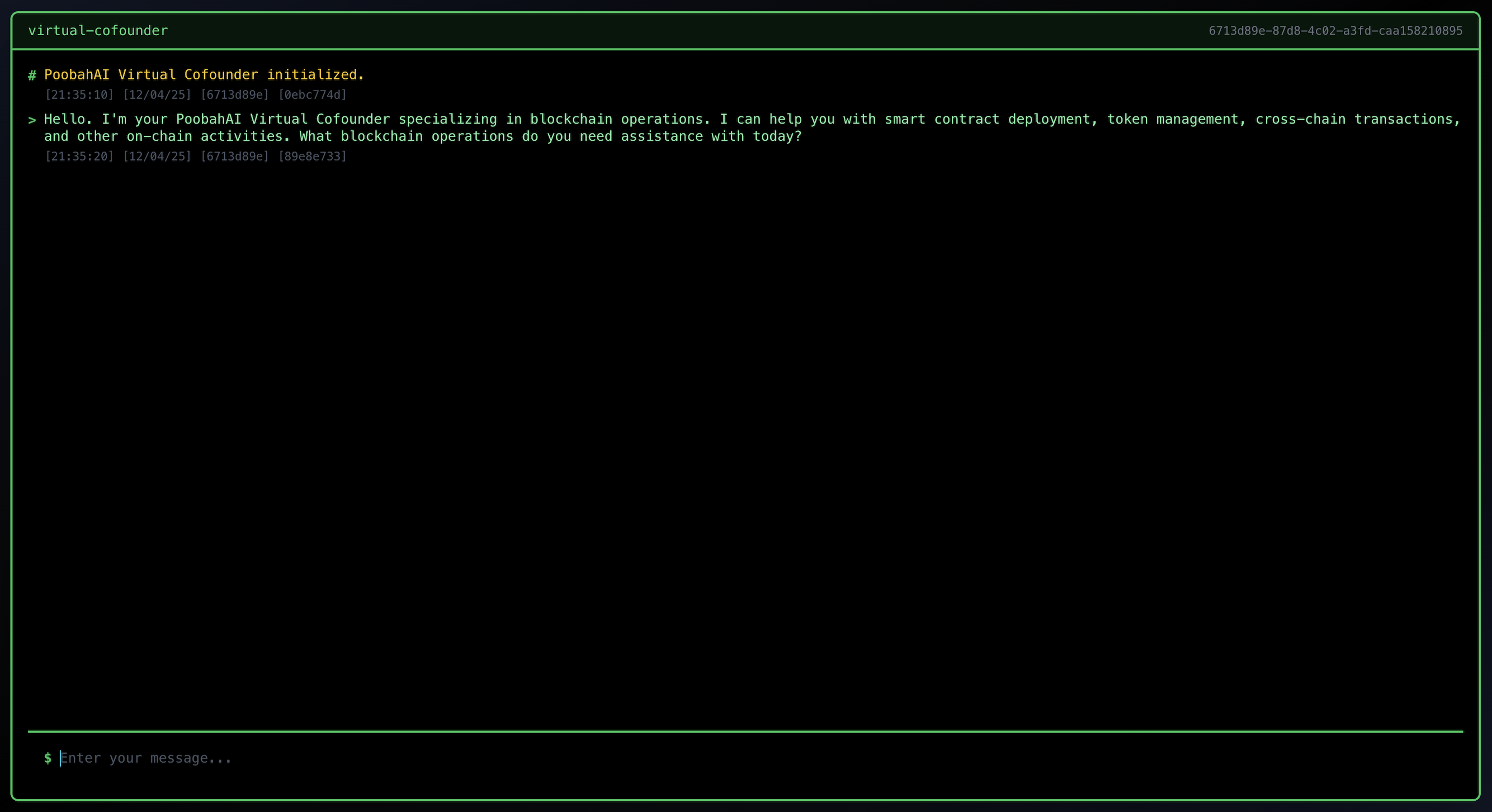
The main area of the screen displays your conversation history with Virtual Cofounder.
Messages are styled like a terminal:
$prefix — Your input (cyan text)>prefix — Assistant responses (green text)#prefix — System messages (yellow text)
Responses support full markdown formatting including headers, bold text, code blocks, and tables.
Input Field

At the bottom of the chat area, type your messages and press Enter to send. When Virtual Cofounder is processing your request, you'll see a "Processing..." indicator.
Keyboard Shortcuts
| Key | Action |
|---|---|
| Enter | Send your message |
| Arrow Up | Previous command from history |
| Arrow Down | Next command from history |
| Esc | Cancel current operation or dismiss notifications |
Status Bar

The status bar at the bottom of the screen shows the health of connected services:
| Indicator | What It Means |
|---|---|
| VCF Agent | The main Virtual Cofounder AI assistant |
| NLP Engine | Natural language processing and persona configuration |
| CRS Engine | Command Relay Service for wallet operations |
| Chain Operation Engine | Blockchain interaction service |
| Knowledge Layer | Documentation and schema information |
| Wallet | Keplr wallet connection status |
Status Colors
- Green (pulsing) — Connected and healthy
- Yellow — Warning or degraded state
- Gray — Disconnected but available
- Red — Error or unavailable
Most features work even if some services show disconnected. Wallet operations require the CRS Engine, and blockchain transactions require the Chain Operation Engine.
Next Step
Ready to start? See Your First Conversation for some prompts to try.